Back up your .library and take your collection with you
Understand Chrome storage, folder libraries and manual .library backups. Keep a complete copy before changing computers or removing the extension.

Your default collection stays in the current Chrome profile
SREFLY stores the default library in IndexedDB within the current Chrome profile. Each profile has its own storage. Switching profiles does not automatically show the original collection.
This local-first tool needs no SREFLY desktop app or local server. First use requires email verification and periodic online trial checks. There is no automatic cloud sync. Chrome account sync is not a collection backup.
A folder library gives originals a clear location
The manager lets you create, open or switch folder libraries. Original files stay in the folder you authorize, and Chrome keeps a local cache. The browser requires your permission to access the folder.
A folder library still needs your own backup plan. Do not move or delete its internal files individually. Preserve the complete folder structure when making a copy or moving it.
Export before moving and verify the new environment
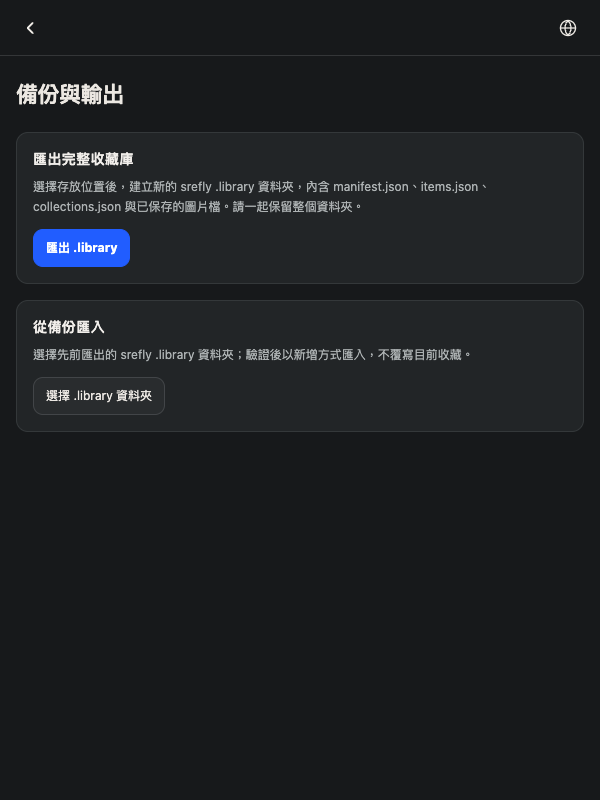
In the sidebar, open Settings → Backup and export, choose Export .library and authorize a save location. Wait for completion and keep the entire output. To restore it, choose Import, select the complete backup, review the preview and confirm as instructed.
Export the complete .library folder from Settings → Backup and export and preserve its contents. Use the import flow to load it in the new Chrome profile or computer.
Before changing the old environment, check several images, Prompts, tags and collections in the new one. Backups are manual and do not automatically retain every historical version.
Keep a usable backup before removal
Deleting a Chrome profile, clearing stored data or removing the extension can affect local saves. Back up first and verify completeness. Seeing an exported file does not prove it can be restored.
If an item contains only a source link, it may be unavailable offline or after the source disappears. For long-term storage, check for an available media copy and the rights to save and use it.
Need help installing or using SREFLY?Visit the support center →
Keep reading

Save the image, then add your Prompt and SREF
Start with an image you like. Keep its source, Prompt and style reference together so you can find them again when you create.

Organize your next project with collections and tags
Collections describe where an image will be used. Tags describe its qualities. Keep your inspiration library easy to find and organize with simple categories.