SREFLY FOR CHROME
Your first steps with SREFLY.
Follow seven steps from your first saved image to your first backup.
This guide uses the actual extension UI with example collections. Start with installation and email verification, then build your own library step by step.
1. Get and install the extension
Install SREFLY in desktop Chrome, then pin the extension from the toolbar extensions menu. The Chrome Web Store installation link will be provided on the Installation page.
2. Verify your email to start the 30-day trial
Enter your email in the extension, request a code and enter the eight-digit code from the email. Your 30 days begin after the first successful verification. Reinstalling with the same email continues the original period.
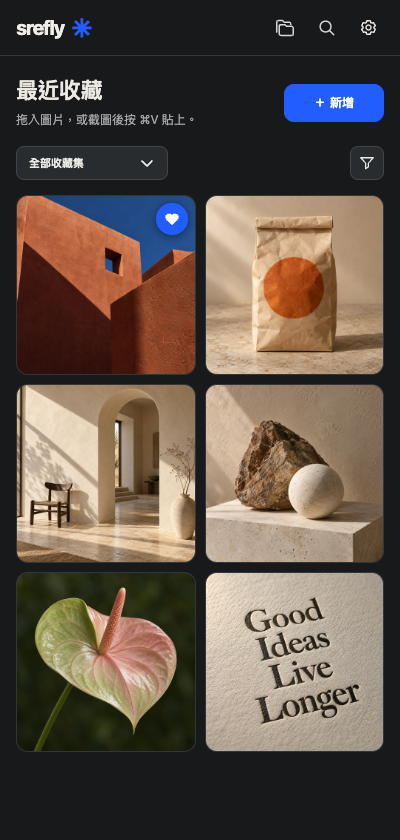
3. Open the sidebar and save your first image
Open srefly from the Chrome toolbar. Right-click an image on a webpage and choose the srefly save action, or use Add in the sidebar to add an image or text manually. Check whether a local image copy was saved or only the source link was kept.
4. Add your Prompt, SREF and source
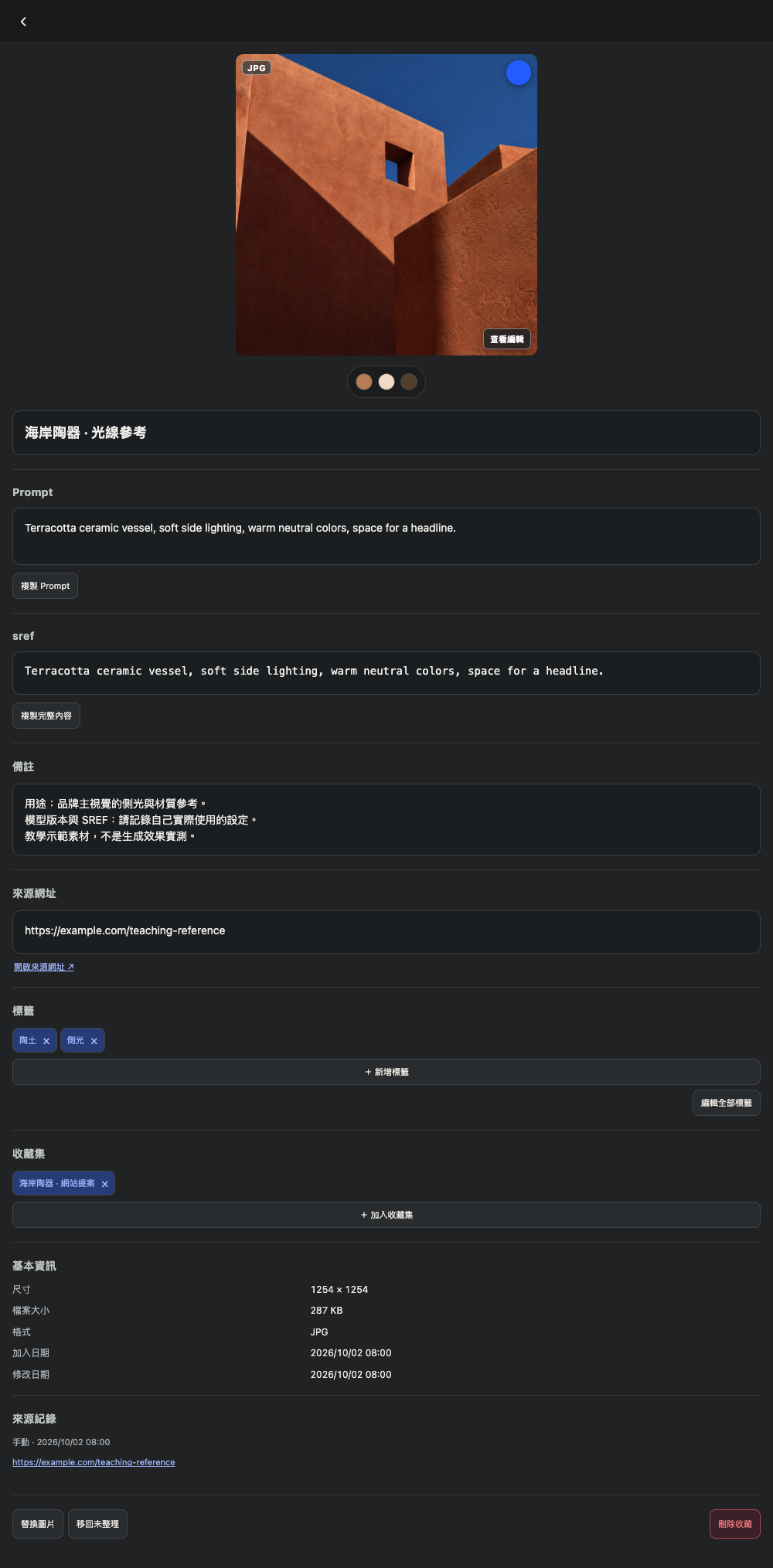
Open the saved item and enter the Prompt you used, an existing SREF value, its source URL and notes. You can add these later. SREFLY does not reconstruct the original Prompt from an image or generate style codes.
5. Create a collection and tag your references
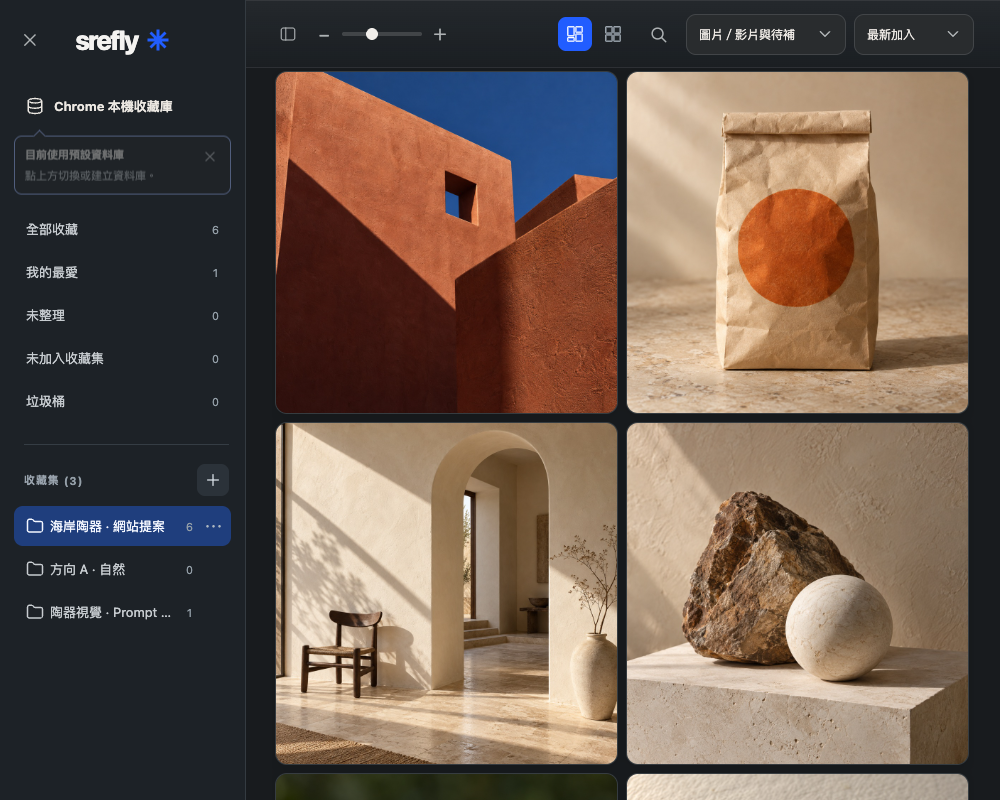
Create a project collection in the manager, such as Brand proposal. Add related items, then use a few consistent tags such as terracotta, warm colors and whitespace. An item can belong to several collections. Check your selection before a batch action.
6. Search, inspect and copy for reuse
Search using a title, Prompt or keyword you recorded, then narrow the results with collection and content filters. Inspect the item before copying a Prompt or SREF to your creative tool. Image generation still happens in that tool.
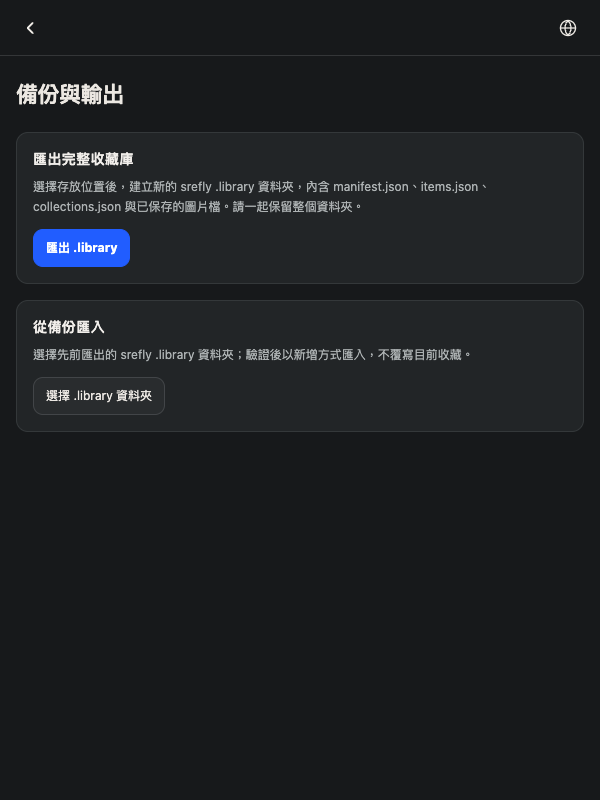
7. Export a backup and verify restoration
Export a complete .library backup from Settings → Backup and export, keeping every file inside. Import it into a separate test environment and check images, text, tags and collections. Verify restoration before changing the old environment. Email verification does not restore local collections.